
Help Center

How can we help?

Find instant answers to your questions or explore our comprehensive guides to get the most out of FieldGrid.

Search for help topic, question or guides...

Search for help topic, question or guides...

Getting Started

4 topics

01

How do I access the admin dashboard?

Log in with your admin credentials and you'll be redirected to the admin dashboard automatically. The dashboard provides an overview of all system activities and key metrics.

01

How do I access the admin dashboard?

Log in with your admin credentials and you'll be redirected to the admin dashboard automatically. The dashboard provides an overview of all system activities and key metrics.

01

How do I access the admin dashboard?

Log in with your admin credentials and you'll be redirected to the admin dashboard automatically. The dashboard provides an overview of all system activities and key metrics.

02

What are the main admin functions available?

As an admin, you can manage jobs, projects, customers, teams, time entries, analytics, schedules, inventory, checklists, audit logs, resources, integrations, invoices, expenses, announcements, billing, and system settings. Each function is accessible from the sidebar navigation.

02

What are the main admin functions available?

As an admin, you can manage jobs, projects, customers, teams, time entries, analytics, schedules, inventory, checklists, audit logs, resources, integrations, invoices, expenses, announcements, billing, and system settings. Each function is accessible from the sidebar navigation.

02

What are the main admin functions available?

As an admin, you can manage jobs, projects, customers, teams, time entries, analytics, schedules, inventory, checklists, audit logs, resources, integrations, invoices, expenses, announcements, billing, and system settings. Each function is accessible from the sidebar navigation.

03

How do I navigate between different admin sections?

Use the sidebar navigation on the left. Each section has its own icon: Dashboard, Job Management, Projects, Customers, Team Management, Time Entries, Analytics & Reports, Schedule, Inventory, Checklist Templates, Audit Log, Resources, Integrations, Invoices, Expense, AI Assistant, Announcements, and Settings.

03

How do I navigate between different admin sections?

Use the sidebar navigation on the left. Each section has its own icon: Dashboard, Job Management, Projects, Customers, Team Management, Time Entries, Analytics & Reports, Schedule, Inventory, Checklist Templates, Audit Log, Resources, Integrations, Invoices, Expense, AI Assistant, Announcements, and Settings.

03

How do I navigate between different admin sections?

Use the sidebar navigation on the left. Each section has its own icon: Dashboard, Job Management, Projects, Customers, Team Management, Time Entries, Analytics & Reports, Schedule, Inventory, Checklist Templates, Audit Log, Resources, Integrations, Invoices, Expense, AI Assistant, Announcements, and Settings.

04

How do I update my admin profile information?

Go to Settings > Company Details to update your organization's information, branding, and contact details. Personal profile updates can be made in the user profile section.

04

How do I update my admin profile information?

Go to Settings > Company Details to update your organization's information, branding, and contact details. Personal profile updates can be made in the user profile section.

04

How do I update my admin profile information?

Go to Settings > Company Details to update your organization's information, branding, and contact details. Personal profile updates can be made in the user profile section.

Customers Management

4 topics

01

How do I add a new customer?

Go to Customers > Add Customer. Enter company information, contact details, billing address, and any special notes. Customers can be linked to projects and jobs.

01

How do I add a new customer?

Go to Customers > Add Customer. Enter company information, contact details, billing address, and any special notes. Customers can be linked to projects and jobs.

01

How do I add a new customer?

Go to Customers > Add Customer. Enter company information, contact details, billing address, and any special notes. Customers can be linked to projects and jobs.

02

How do I manage customer information?

Click on any customer to view and edit their details, view associated projects and jobs, payment history, and communication logs.

02

How do I manage customer information?

Click on any customer to view and edit their details, view associated projects and jobs, payment history, and communication logs.

02

How do I manage customer information?

Click on any customer to view and edit their details, view associated projects and jobs, payment history, and communication logs.

03

How do I track customer interactions?

The customer details page shows all related jobs, projects, invoices, and communication history. Use this to maintain a complete customer relationship record.

03

How do I track customer interactions?

The customer details page shows all related jobs, projects, invoices, and communication history. Use this to maintain a complete customer relationship record.

03

How do I track customer interactions?

The customer details page shows all related jobs, projects, invoices, and communication history. Use this to maintain a complete customer relationship record.

04

How do I search for customers?

Use the search bar in the Customers section to find customers by name, company, email, or phone number. Filters help narrow down results.

04

How do I search for customers?

Use the search bar in the Customers section to find customers by name, company, email, or phone number. Filters help narrow down results.

04

How do I search for customers?

Use the search bar in the Customers section to find customers by name, company, email, or phone number. Filters help narrow down results.

Projects Management

5 topics

01

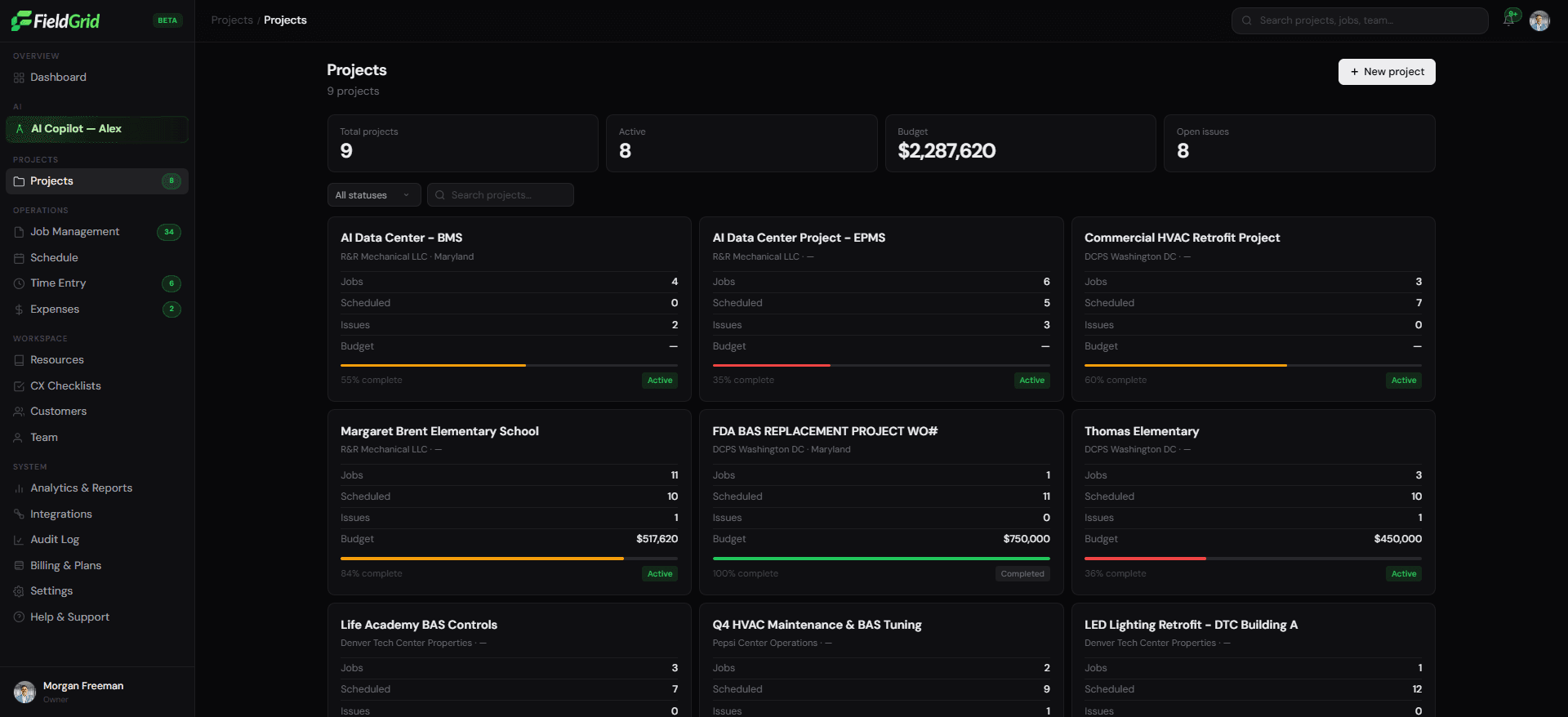
How do I create a new project?

Go to Projects > Create New Project. Enter project details including name, customer, description, start and end dates, budget, and status. Projects help organize multiple jobs under a single umbrella.

01

How do I create a new project?

Go to Projects > Create New Project. Enter project details including name, customer, description, start and end dates, budget, and status. Projects help organize multiple jobs under a single umbrella.

01

How do I create a new project?

Go to Projects > Create New Project. Enter project details including name, customer, description, start and end dates, budget, and status. Projects help organize multiple jobs under a single umbrella.

02

How do I link jobs to a project?

When creating or editing a job, select the project from the project dropdown. All jobs linked to a project will appear in the project details page for easy tracking.

02

How do I link jobs to a project?

When creating or editing a job, select the project from the project dropdown. All jobs linked to a project will appear in the project details page for easy tracking.

02

How do I link jobs to a project?

When creating or editing a job, select the project from the project dropdown. All jobs linked to a project will appear in the project details page for easy tracking.

03

How do I track project progress and budget?

View project details to see overall progress, budget utilization, completed jobs, pending tasks, and financial summaries. Use the project dashboard for real-time updates.

03

How do I track project progress and budget?

View project details to see overall progress, budget utilization, completed jobs, pending tasks, and financial summaries. Use the project dashboard for real-time updates.

03

How do I track project progress and budget?

View project details to see overall progress, budget utilization, completed jobs, pending tasks, and financial summaries. Use the project dashboard for real-time updates.

04

How do I manage project status?

Projects can be set to Planning, Active, On Hold, Completed, or Cancelled. Update the status in the project details page to reflect current project state.

04

How do I manage project status?

Projects can be set to Planning, Active, On Hold, Completed, or Cancelled. Update the status in the project details page to reflect current project state.

04

How do I manage project status?

Projects can be set to Planning, Active, On Hold, Completed, or Cancelled. Update the status in the project details page to reflect current project state.

05

How do I view project analytics?

Each project has its own analytics dashboard showing job completion rates, time tracking, expenses, revenue, and team performance specific to that project.

05

How do I view project analytics?

Each project has its own analytics dashboard showing job completion rates, time tracking, expenses, revenue, and team performance specific to that project.

05

How do I view project analytics?

Each project has its own analytics dashboard showing job completion rates, time tracking, expenses, revenue, and team performance specific to that project.

Job Management

5 topics

01

How do I create a new job?

Go to Job Management > Create New Job. Fill in the job details including title, description, location, priority level, assigned technicians, and estimated completion time.

01

How do I create a new job?

Go to Job Management > Create New Job. Fill in the job details including title, description, location, priority level, assigned technicians, and estimated completion time.

01

How do I create a new job?

Go to Job Management > Create New Job. Fill in the job details including title, description, location, priority level, assigned technicians, and estimated completion time.

02

How do I assign jobs to technicians?

When creating or editing a job, use the "Assign Technicians" section to select team members based on their skills, availability, and current workload.

02

How do I assign jobs to technicians?

When creating or editing a job, use the "Assign Technicians" section to select team members based on their skills, availability, and current workload.

02

How do I assign jobs to technicians?

When creating or editing a job, use the "Assign Technicians" section to select team members based on their skills, availability, and current workload.

03

How do I track job progress in real-time?

Use the Job Management dashboard to view real-time updates, status changes, completion rates, and any issues reported by technicians. The system automatically updates as technicians log their progress.

03

How do I track job progress in real-time?

Use the Job Management dashboard to view real-time updates, status changes, completion rates, and any issues reported by technicians. The system automatically updates as technicians log their progress.

03

How do I track job progress in real-time?

Use the Job Management dashboard to view real-time updates, status changes, completion rates, and any issues reported by technicians. The system automatically updates as technicians log their progress.

04

How do I set job priorities?

Jobs can be set as High (red), Medium (orange), or Low (blue) priority. High priority jobs appear first in technician queues and should be completed urgently.

04

How do I set job priorities?

Jobs can be set as High (red), Medium (orange), or Low (blue) priority. High priority jobs appear first in technician queues and should be completed urgently.

04

How do I set job priorities?

Jobs can be set as High (red), Medium (orange), or Low (blue) priority. High priority jobs appear first in technician queues and should be completed urgently.

05

How do I handle job cancellations or rescheduling?

In Job Management, select the job and use the "Edit" option to change the schedule or "Cancel" to remove it. Cancelled jobs are logged in the audit trail.

05

How do I handle job cancellations or rescheduling?

In Job Management, select the job and use the "Edit" option to change the schedule or "Cancel" to remove it. Cancelled jobs are logged in the audit trail.

05

How do I handle job cancellations or rescheduling?

In Job Management, select the job and use the "Edit" option to change the schedule or "Cancel" to remove it. Cancelled jobs are logged in the audit trail.

Team Management

5 topics

01

How do I add new team members?

Go to Team Management > Add Member. Enter their personal details, work information, skills, and assign appropriate roles and permissions. They'll receive an email invitation to set up their account.

01

How do I add new team members?

Go to Team Management > Add Member. Enter their personal details, work information, skills, and assign appropriate roles and permissions. They'll receive an email invitation to set up their account.

01

How do I add new team members?

Go to Team Management > Add Member. Enter their personal details, work information, skills, and assign appropriate roles and permissions. They'll receive an email invitation to set up their account.

02

How do I manage team permissions and roles?

In Team Management, click on any team member to edit their role, permissions, and access levels. You can assign roles like Technician, Supervisor, or Admin with different access rights.

02

How do I manage team permissions and roles?

In Team Management, click on any team member to edit their role, permissions, and access levels. You can assign roles like Technician, Supervisor, or Admin with different access rights.

02

How do I manage team permissions and roles?

In Team Management, click on any team member to edit their role, permissions, and access levels. You can assign roles like Technician, Supervisor, or Admin with different access rights.

03

How do I track team performance?

Use the Team Management dashboard to view individual and team performance metrics, job completion rates, attendance records, and productivity analytics.

03

How do I track team performance?

Use the Team Management dashboard to view individual and team performance metrics, job completion rates, attendance records, and productivity analytics.

03

How do I track team performance?

Use the Team Management dashboard to view individual and team performance metrics, job completion rates, attendance records, and productivity analytics.

04

How do I handle team member deactivation?

In Team Management, select the team member and use the "Deactivate" option. This will revoke their access while preserving their work history and data.

04

How do I handle team member deactivation?

In Team Management, select the team member and use the "Deactivate" option. This will revoke their access while preserving their work history and data.

04

How do I handle team member deactivation?

In Team Management, select the team member and use the "Deactivate" option. This will revoke their access while preserving their work history and data.

05

How do I manage team schedules and availability?

Use the Schedule section to view and manage team member availability, assign work shifts, and coordinate coverage for different time periods.

05

How do I manage team schedules and availability?

Use the Schedule section to view and manage team member availability, assign work shifts, and coordinate coverage for different time periods.

05

How do I manage team schedules and availability?

Use the Schedule section to view and manage team member availability, assign work shifts, and coordinate coverage for different time periods.

Analytics & Reports

5 topics

01

What analytics and reports are available?

View comprehensive performance metrics including job completion rates, team productivity, inventory usage, financial reports, customer satisfaction scores, and system utilization statistics.

01

What analytics and reports are available?

View comprehensive performance metrics including job completion rates, team productivity, inventory usage, financial reports, customer satisfaction scores, and system utilization statistics.

01

What analytics and reports are available?

View comprehensive performance metrics including job completion rates, team productivity, inventory usage, financial reports, customer satisfaction scores, and system utilization statistics.

02

How do I export reports for external use?

In the Analytics section, select your desired metrics, date range, and format. Click the Export button to download reports as PDF, Excel, or CSV files.

02

How do I export reports for external use?

In the Analytics section, select your desired metrics, date range, and format. Click the Export button to download reports as PDF, Excel, or CSV files.

02

How do I export reports for external use?

In the Analytics section, select your desired metrics, date range, and format. Click the Export button to download reports as PDF, Excel, or CSV files.

03

How do I set up automated report delivery?

Go to Settings > Notification Preferences to configure automated report delivery via email. You can schedule daily, weekly, or monthly reports.

03

How do I set up automated report delivery?

Go to Settings > Notification Preferences to configure automated report delivery via email. You can schedule daily, weekly, or monthly reports.

03

How do I set up automated report delivery?

Go to Settings > Notification Preferences to configure automated report delivery via email. You can schedule daily, weekly, or monthly reports.

04

How do I create custom dashboards?

Use the Analytics dashboard builder to create custom views with your preferred metrics, charts, and data visualizations. Save these as personal or shared dashboards.

04

How do I create custom dashboards?

Use the Analytics dashboard builder to create custom views with your preferred metrics, charts, and data visualizations. Save these as personal or shared dashboards.

04

How do I create custom dashboards?

Use the Analytics dashboard builder to create custom views with your preferred metrics, charts, and data visualizations. Save these as personal or shared dashboards.

05

How do I track key performance indicators (KPIs)?

The Analytics dashboard displays real-time KPIs including job completion rates, response times, customer satisfaction, and operational efficiency metrics.

05

How do I track key performance indicators (KPIs)?

The Analytics dashboard displays real-time KPIs including job completion rates, response times, customer satisfaction, and operational efficiency metrics.

05

How do I track key performance indicators (KPIs)?

The Analytics dashboard displays real-time KPIs including job completion rates, response times, customer satisfaction, and operational efficiency metrics.

Time Entries

4 topics

01

How do I view team time entries?

Go to Time Entries to see all clock-in/clock-out records, job time tracking, and hours worked by team members. Filter by date range, technician, or job.

01

How do I view team time entries?

Go to Time Entries to see all clock-in/clock-out records, job time tracking, and hours worked by team members. Filter by date range, technician, or job.

01

How do I view team time entries?

Go to Time Entries to see all clock-in/clock-out records, job time tracking, and hours worked by team members. Filter by date range, technician, or job.

02

How do I approve or reject time entries?

Review time entries and use the approve/reject actions for payroll processing. Approved entries are locked and cannot be modified.

02

How do I approve or reject time entries?

Review time entries and use the approve/reject actions for payroll processing. Approved entries are locked and cannot be modified.

02

How do I approve or reject time entries?

Review time entries and use the approve/reject actions for payroll processing. Approved entries are locked and cannot be modified.

03

How do I track overtime and hours worked?

The Time Entries dashboard shows total hours, overtime calculations, and time distribution across jobs. Export reports for payroll integration.

03

How do I track overtime and hours worked?

The Time Entries dashboard shows total hours, overtime calculations, and time distribution across jobs. Export reports for payroll integration.

03

How do I track overtime and hours worked?

The Time Entries dashboard shows total hours, overtime calculations, and time distribution across jobs. Export reports for payroll integration.

04

How do I handle time entry discrepancies?

If you notice incorrect time entries, contact the technician to clarify. You can add notes or request corrections through the time entry details.

04

How do I handle time entry discrepancies?

If you notice incorrect time entries, contact the technician to clarify. You can add notes or request corrections through the time entry details.

04

How do I handle time entry discrepancies?

If you notice incorrect time entries, contact the technician to clarify. You can add notes or request corrections through the time entry details.

Schedule Management

4 topics

01

How do I create and manage team schedules?

How do I create and manage team schedules? Go to Schedule to view the calendar interface. Click on time slots to create new assignments, drag and drop to reschedule, and use the bulk scheduling tools for efficiency.

01

How do I create and manage team schedules?

How do I create and manage team schedules? Go to Schedule to view the calendar interface. Click on time slots to create new assignments, drag and drop to reschedule, and use the bulk scheduling tools for efficiency.

01

How do I create and manage team schedules?

How do I create and manage team schedules? Go to Schedule to view the calendar interface. Click on time slots to create new assignments, drag and drop to reschedule, and use the bulk scheduling tools for efficiency.

02

How do I handle schedule conflicts?

The system automatically detects schedule conflicts and highlights them. Use the conflict resolution tools to reassign jobs or adjust schedules as needed.

02

How do I handle schedule conflicts?

The system automatically detects schedule conflicts and highlights them. Use the conflict resolution tools to reassign jobs or adjust schedules as needed.

02

How do I handle schedule conflicts?

The system automatically detects schedule conflicts and highlights them. Use the conflict resolution tools to reassign jobs or adjust schedules as needed.

03

How do I set up recurring schedules?

When creating a schedule, use the "Recurring" option to set up daily, weekly, or monthly patterns. This is useful for maintenance jobs and regular service calls.

03

How do I set up recurring schedules?

When creating a schedule, use the "Recurring" option to set up daily, weekly, or monthly patterns. This is useful for maintenance jobs and regular service calls.

03

How do I set up recurring schedules?

When creating a schedule, use the "Recurring" option to set up daily, weekly, or monthly patterns. This is useful for maintenance jobs and regular service calls.

04

How do I manage emergency scheduling?

Use the "Emergency Schedule" feature to quickly assign urgent jobs. The system will automatically notify available technicians and update their schedules.

04

How do I manage emergency scheduling?

Use the "Emergency Schedule" feature to quickly assign urgent jobs. The system will automatically notify available technicians and update their schedules.

04

How do I manage emergency scheduling?

Use the "Emergency Schedule" feature to quickly assign urgent jobs. The system will automatically notify available technicians and update their schedules.

Inventory Management

5 topics

01

How do I add new inventory items?

Go to Inventory > Add Item. Enter item details including name, description, category, stock levels, minimum thresholds, and assign to specific trucks or locations.

01

How do I add new inventory items?

Go to Inventory > Add Item. Enter item details including name, description, category, stock levels, minimum thresholds, and assign to specific trucks or locations.

01

How do I add new inventory items?

Go to Inventory > Add Item. Enter item details including name, description, category, stock levels, minimum thresholds, and assign to specific trucks or locations.

02

How do I track inventory usage and consumption?

The system automatically tracks when items are used in jobs. View usage history, consumption patterns, and reorder recommendations in the item details.

02

How do I track inventory usage and consumption?

The system automatically tracks when items are used in jobs. View usage history, consumption patterns, and reorder recommendations in the item details.

02

How do I track inventory usage and consumption?

The system automatically tracks when items are used in jobs. View usage history, consumption patterns, and reorder recommendations in the item details.

03

How do I set up automatic reorder notifications?

In Inventory settings, configure minimum stock levels for each item. The system will automatically notify you when items need to be reordered.

03

How do I set up automatic reorder notifications?

In Inventory settings, configure minimum stock levels for each item. The system will automatically notify you when items need to be reordered.

03

How do I set up automatic reorder notifications?

In Inventory settings, configure minimum stock levels for each item. The system will automatically notify you when items need to be reordered.

04

How do I manage inventory across multiple locations?

Use the location management feature to track inventory across different warehouses, trucks, and service centers. Transfer items between locations as needed.

04

How do I manage inventory across multiple locations?

Use the location management feature to track inventory across different warehouses, trucks, and service centers. Transfer items between locations as needed.

04

How do I manage inventory across multiple locations?

Use the location management feature to track inventory across different warehouses, trucks, and service centers. Transfer items between locations as needed.

05

How do I handle inventory discrepancies?

Use the Audit Log to track inventory changes and identify discrepancies. Contact technicians for clarification on usage reports and update stock levels accordingly.

05

How do I handle inventory discrepancies?

Use the Audit Log to track inventory changes and identify discrepancies. Contact technicians for clarification on usage reports and update stock levels accordingly.

05

How do I handle inventory discrepancies?

Use the Audit Log to track inventory changes and identify discrepancies. Contact technicians for clarification on usage reports and update stock levels accordingly.

Resources Management

5 topics

01

How do I upload documents to the resources?

Go to Resources > Upload Document. Select the file, add metadata including title, description, category, and tags. Choose appropriate access permissions for team members.

01

How do I upload documents to the resources?

Go to Resources > Upload Document. Select the file, add metadata including title, description, category, and tags. Choose appropriate access permissions for team members.

01

How do I upload documents to the resources?

Go to Resources > Upload Document. Select the file, add metadata including title, description, category, and tags. Choose appropriate access permissions for team members.

02

How do I organize resources content effectively?

Use categories, tags, and folders to organize documents. Create a logical structure with main categories like Procedures, Manuals, Training, and Safety documents.

02

How do I organize resources content effectively?

Use categories, tags, and folders to organize documents. Create a logical structure with main categories like Procedures, Manuals, Training, and Safety documents.

02

How do I organize resources content effectively?

Use categories, tags, and folders to organize documents. Create a logical structure with main categories like Procedures, Manuals, Training, and Safety documents.

03

How do I manage document versions?

When uploading updated documents, the system automatically creates version history. Previous versions remain accessible for reference and compliance purposes.

03

How do I manage document versions?

When uploading updated documents, the system automatically creates version history. Previous versions remain accessible for reference and compliance purposes.

03

How do I manage document versions?

When uploading updated documents, the system automatically creates version history. Previous versions remain accessible for reference and compliance purposes.

04

How do I control access to sensitive documents?

Set document permissions to restrict access to specific roles or individuals. Use the permission matrix to ensure only authorized personnel can view sensitive information.

04

How do I control access to sensitive documents?

Set document permissions to restrict access to specific roles or individuals. Use the permission matrix to ensure only authorized personnel can view sensitive information.

04

How do I control access to sensitive documents?

Set document permissions to restrict access to specific roles or individuals. Use the permission matrix to ensure only authorized personnel can view sensitive information.

05

How do I track document usage and downloads?

The resources section tracks document views, downloads, and usage patterns. Use this data to identify popular resources and training needs.

05

How do I track document usage and downloads?

The resources section tracks document views, downloads, and usage patterns. Use this data to identify popular resources and training needs.

05

How do I track document usage and downloads?

The resources section tracks document views, downloads, and usage patterns. Use this data to identify popular resources and training needs.

Audit Log

4 topics

01

What activities are tracked in the audit log?

All system activities including user logins, job changes, inventory updates, permission modifications, data exports, and security events are automatically logged with timestamps and user information.

01

What activities are tracked in the audit log?

All system activities including user logins, job changes, inventory updates, permission modifications, data exports, and security events are automatically logged with timestamps and user information.

01

What activities are tracked in the audit log?

All system activities including user logins, job changes, inventory updates, permission modifications, data exports, and security events are automatically logged with timestamps and user information.

02

How do I filter and search audit entries?

Use the search bar and filters to find specific events by user, date range, activity type, or affected records. Export audit logs for compliance reporting.

02

How do I filter and search audit entries?

Use the search bar and filters to find specific events by user, date range, activity type, or affected records. Export audit logs for compliance reporting.

02

How do I filter and search audit entries?

Use the search bar and filters to find specific events by user, date range, activity type, or affected records. Export audit logs for compliance reporting.

03

How long are audit logs retained?

Audit logs are retained according to your organization's data retention policy. Configure retention periods in Settings > Security Settings.

03

How long are audit logs retained?

Audit logs are retained according to your organization's data retention policy. Configure retention periods in Settings > Security Settings.

03

How long are audit logs retained?

Audit logs are retained according to your organization's data retention policy. Configure retention periods in Settings > Security Settings.

04

How do I investigate suspicious activities?

Use the audit log filters to identify unusual patterns, multiple failed login attempts, or unauthorized access attempts. Contact security if suspicious activity is detected.

04

How do I investigate suspicious activities?

Use the audit log filters to identify unusual patterns, multiple failed login attempts, or unauthorized access attempts. Contact security if suspicious activity is detected.

04

How do I investigate suspicious activities?

Use the audit log filters to identify unusual patterns, multiple failed login attempts, or unauthorized access attempts. Contact security if suspicious activity is detected.

AI Assistant

3 topics

01

What can the AI assistant help me with?

Alex can help with technical questions, troubleshooting procedures, equipment manuals, safety protocols, administrative tasks, and data analysis. Ask anything related to your operations.

01

What can the AI assistant help me with?

Alex can help with technical questions, troubleshooting procedures, equipment manuals, safety protocols, administrative tasks, and data analysis. Ask anything related to your operations.

01

What can the AI assistant help me with?

Alex can help with technical questions, troubleshooting procedures, equipment manuals, safety protocols, administrative tasks, and data analysis. Ask anything related to your operations.

02

How do I train the AI on company-specific procedures?

Upload company documents to the Resources and the AI will learn from your specific procedures, manuals, and best practices to provide more relevant assistance.

02

How do I train the AI on company-specific procedures?

Upload company documents to the Resources and the AI will learn from your specific procedures, manuals, and best practices to provide more relevant assistance.

02

How do I train the AI on company-specific procedures?

Upload company documents to the Resources and the AI will learn from your specific procedures, manuals, and best practices to provide more relevant assistance.

03

How do I monitor AI usage and effectiveness?

View AI interaction logs in the Analytics section to track usage patterns, popular questions, and user satisfaction with AI responses.

03

How do I monitor AI usage and effectiveness?

View AI interaction logs in the Analytics section to track usage patterns, popular questions, and user satisfaction with AI responses.

03

How do I monitor AI usage and effectiveness?

View AI interaction logs in the Analytics section to track usage patterns, popular questions, and user satisfaction with AI responses.

Invoices Management

5 topics

01

How do I create a new invoice?

Go to Invoices > Create Invoice. Select a customer, add line items for services or products, set payment terms, and generate the invoice. You can create invoices from completed jobs or manually.

01

How do I create a new invoice?

Go to Invoices > Create Invoice. Select a customer, add line items for services or products, set payment terms, and generate the invoice. You can create invoices from completed jobs or manually.

01

How do I create a new invoice?

Go to Invoices > Create Invoice. Select a customer, add line items for services or products, set payment terms, and generate the invoice. You can create invoices from completed jobs or manually.

02

How do I track invoice status?

View all invoices in the Invoices section with status indicators: Draft, Sent, Paid, Overdue, or Cancelled. Filter and search to find specific invoices quickly.

02

How do I track invoice status?

View all invoices in the Invoices section with status indicators: Draft, Sent, Paid, Overdue, or Cancelled. Filter and search to find specific invoices quickly.

02

How do I track invoice status?

View all invoices in the Invoices section with status indicators: Draft, Sent, Paid, Overdue, or Cancelled. Filter and search to find specific invoices quickly.

03

How do I send invoices to customers?

Once an invoice is created, use the "Send" action to email it directly to the customer. The system tracks when invoices are sent and viewed.

03

How do I send invoices to customers?

Once an invoice is created, use the "Send" action to email it directly to the customer. The system tracks when invoices are sent and viewed.

03

How do I send invoices to customers?

Once an invoice is created, use the "Send" action to email it directly to the customer. The system tracks when invoices are sent and viewed.

04

How do I record payments?

When a customer makes a payment, mark the invoice as paid and record the payment method and date. This updates the invoice status and customer payment history.

04

How do I record payments?

When a customer makes a payment, mark the invoice as paid and record the payment method and date. This updates the invoice status and customer payment history.

04

How do I record payments?

When a customer makes a payment, mark the invoice as paid and record the payment method and date. This updates the invoice status and customer payment history.

05

How do I download or print invoices?

Click on any invoice to view details, then use the "Download PDF" option to save or print a professional invoice document.

05

How do I download or print invoices?

Click on any invoice to view details, then use the "Download PDF" option to save or print a professional invoice document.

05

How do I download or print invoices?

Click on any invoice to view details, then use the "Download PDF" option to save or print a professional invoice document.

Checklist Templates

4 topics

01

How do I create a checklist template?

Go to Checklist Templates > Create Template. Define checklist items, required fields, and assign to specific job types or projects. Templates ensure consistent quality checks.

01

How do I create a checklist template?

Go to Checklist Templates > Create Template. Define checklist items, required fields, and assign to specific job types or projects. Templates ensure consistent quality checks.

01

How do I create a checklist template?

Go to Checklist Templates > Create Template. Define checklist items, required fields, and assign to specific job types or projects. Templates ensure consistent quality checks.

02

How do I assign checklists to jobs?

When creating or editing a job, select a checklist template. Technicians will see the checklist items when working on that job and must complete them.

02

How do I assign checklists to jobs?

When creating or editing a job, select a checklist template. Technicians will see the checklist items when working on that job and must complete them.

02

How do I assign checklists to jobs?

When creating or editing a job, select a checklist template. Technicians will see the checklist items when working on that job and must complete them.

03

How do I manage checklist items?

Edit templates to add, remove, or reorder items. You can mark items as required or optional, and add descriptions or instructions for each item.

03

How do I manage checklist items?

Edit templates to add, remove, or reorder items. You can mark items as required or optional, and add descriptions or instructions for each item.

03

How do I manage checklist items?

Edit templates to add, remove, or reorder items. You can mark items as required or optional, and add descriptions or instructions for each item.

04

How do I view checklist completion data?

View completed checklists in job details. Use Analytics to see completion rates, common issues, and quality metrics across all jobs.

04

How do I view checklist completion data?

View completed checklists in job details. Use Analytics to see completion rates, common issues, and quality metrics across all jobs.

04

How do I view checklist completion data?

View completed checklists in job details. Use Analytics to see completion rates, common issues, and quality metrics across all jobs.

Expense Management

4 topics

01

How do I view team time entries?

Go to Expense to see all expense submissions from technicians. Review, approve, or reject expenses, and track expense categories and totals.

01

How do I view team time entries?

Go to Expense to see all expense submissions from technicians. Review, approve, or reject expenses, and track expense categories and totals.

01

How do I view team time entries?

Go to Expense to see all expense submissions from technicians. Review, approve, or reject expenses, and track expense categories and totals.

02

How do I approve or reject expense submissions?

Review each expense entry, check receipts and documentation, then use the approve or reject actions. Approved expenses are added to financial reports.

02

How do I approve or reject expense submissions?

Review each expense entry, check receipts and documentation, then use the approve or reject actions. Approved expenses are added to financial reports.

02

How do I approve or reject expense submissions?

Review each expense entry, check receipts and documentation, then use the approve or reject actions. Approved expenses are added to financial reports.

03

How do I track expense categories?

Expenses are automatically categorized (fuel, materials, meals, etc.). View expense reports by category to understand spending patterns.

03

How do I track expense categories?

Expenses are automatically categorized (fuel, materials, meals, etc.). View expense reports by category to understand spending patterns.

03

How do I track expense categories?

Expenses are automatically categorized (fuel, materials, meals, etc.). View expense reports by category to understand spending patterns.

04

How do I export expense data?

Use the export feature to download expense reports in CSV or Excel format for accounting software integration or financial analysis.

04

How do I export expense data?

Use the export feature to download expense reports in CSV or Excel format for accounting software integration or financial analysis.

04

How do I export expense data?

Use the export feature to download expense reports in CSV or Excel format for accounting software integration or financial analysis.

Integrations

4 topics

01

What third-party integrations are available?

FieldGrid supports integrations with QuickBooks, Google Calendar, Slack, Microsoft Teams, and other popular business tools. Check the Integrations page for the full list.

01

What third-party integrations are available?

FieldGrid supports integrations with QuickBooks, Google Calendar, Slack, Microsoft Teams, and other popular business tools. Check the Integrations page for the full list.

01

What third-party integrations are available?

FieldGrid supports integrations with QuickBooks, Google Calendar, Slack, Microsoft Teams, and other popular business tools. Check the Integrations page for the full list.

02

How do I connect an integration?

Go to Integrations, select the service you want to connect, and follow the authentication steps. Most integrations use OAuth for secure connection.

02

How do I connect an integration?

Go to Integrations, select the service you want to connect, and follow the authentication steps. Most integrations use OAuth for secure connection.

02

How do I connect an integration?

Go to Integrations, select the service you want to connect, and follow the authentication steps. Most integrations use OAuth for secure connection.

03

How do I manage integration settings?

How do I manage integration settings? After connecting an integration, configure sync settings, data mapping, and notification preferences in the integration details page.

03

How do I manage integration settings?

How do I manage integration settings? After connecting an integration, configure sync settings, data mapping, and notification preferences in the integration details page.

03

How do I manage integration settings?

How do I manage integration settings? After connecting an integration, configure sync settings, data mapping, and notification preferences in the integration details page.

04

How do I disconnect an integration?

Go to Integrations, find the connected service, and use the disconnect option. This will stop data syncing but preserve historical data.

04

How do I disconnect an integration?

Go to Integrations, find the connected service, and use the disconnect option. This will stop data syncing but preserve historical data.

04

How do I disconnect an integration?

Go to Integrations, find the connected service, and use the disconnect option. This will stop data syncing but preserve historical data.

Billing & Subscription

6 topics

01

How do I view my current subscription plan?

Go to Settings > Billing to see your current plan, billing cycle, subscription status, and included features. View seat allocations and usage.

01

How do I view my current subscription plan?

Go to Settings > Billing to see your current plan, billing cycle, subscription status, and included features. View seat allocations and usage.

01

How do I view my current subscription plan?

Go to Settings > Billing to see your current plan, billing cycle, subscription status, and included features. View seat allocations and usage.

02

How do I manage subscription seats?

Click "Manage Seats" in the Billing section to add or remove technician and PM/Admin seats. See pricing for additional seats and update your subscription.

02

How do I manage subscription seats?

Click "Manage Seats" in the Billing section to add or remove technician and PM/Admin seats. See pricing for additional seats and update your subscription.

02

How do I manage subscription seats?

Click "Manage Seats" in the Billing section to add or remove technician and PM/Admin seats. See pricing for additional seats and update your subscription.

03

How do I access the billing portal?

Use the "Billing Portal" button in Settings > Billing to access Stripe's secure portal where you can view invoices, update payment methods, and manage billing history.

03

How do I access the billing portal?

Use the "Billing Portal" button in Settings > Billing to access Stripe's secure portal where you can view invoices, update payment methods, and manage billing history.

03

How do I access the billing portal?

Use the "Billing Portal" button in Settings > Billing to access Stripe's secure portal where you can view invoices, update payment methods, and manage billing history.

04

How do I view billing invoices?

The Billing section shows recent invoices. Click "View All Invoices" to see complete billing history, or download individual invoices as PDFs.

04

How do I view billing invoices?

The Billing section shows recent invoices. Click "View All Invoices" to see complete billing history, or download individual invoices as PDFs.

04

How do I view billing invoices?

The Billing section shows recent invoices. Click "View All Invoices" to see complete billing history, or download individual invoices as PDFs.

05

How do I update my payment method?

Access the Billing Portal from Settings > Billing, then navigate to payment methods to add, update, or remove payment cards.

05

How do I update my payment method?

Access the Billing Portal from Settings > Billing, then navigate to payment methods to add, update, or remove payment cards.

05

How do I update my payment method?

Access the Billing Portal from Settings > Billing, then navigate to payment methods to add, update, or remove payment cards.

06

What happens if my payment fails?

You'll receive email notifications about payment issues. Access the Billing Portal to update your payment method. Your subscription may be paused if payment isn't resolved.

06

What happens if my payment fails?

You'll receive email notifications about payment issues. Access the Billing Portal to update your payment method. Your subscription may be paused if payment isn't resolved.

06

What happens if my payment fails?

You'll receive email notifications about payment issues. Access the Billing Portal to update your payment method. Your subscription may be paused if payment isn't resolved.

Announcements

5 topics

01

How do I create a new announcement?

How do I create a new announcement? Go to Announcements > Create New Announcement. Write your message, select recipients (all users, specific teams, or individuals), and choose delivery options.

01

How do I create a new announcement?

How do I create a new announcement? Go to Announcements > Create New Announcement. Write your message, select recipients (all users, specific teams, or individuals), and choose delivery options.

01

How do I create a new announcement?

How do I create a new announcement? Go to Announcements > Create New Announcement. Write your message, select recipients (all users, specific teams, or individuals), and choose delivery options.

02

How do I schedule announcements for later delivery?

Use the Schedule feature to set specific dates and times for announcement delivery. This is useful for planned updates, training reminders, or policy changes.

02

How do I schedule announcements for later delivery?

Use the Schedule feature to set specific dates and times for announcement delivery. This is useful for planned updates, training reminders, or policy changes.

02

How do I schedule announcements for later delivery?

Use the Schedule feature to set specific dates and times for announcement delivery. This is useful for planned updates, training reminders, or policy changes.

03

How do I track announcement read receipts?

The system tracks when announcements are read by recipients. View read status and follow up with users who haven't acknowledged important messages.

03

How do I track announcement read receipts?

The system tracks when announcements are read by recipients. View read status and follow up with users who haven't acknowledged important messages.

03

How do I track announcement read receipts?

The system tracks when announcements are read by recipients. View read status and follow up with users who haven't acknowledged important messages.

04

How do I manage announcement categories?

Use categories like Safety, Training, Equipment Updates, and General to organize announcements. This helps users quickly find relevant information.

04

How do I manage announcement categories?

Use categories like Safety, Training, Equipment Updates, and General to organize announcements. This helps users quickly find relevant information.

04

How do I manage announcement categories?

Use categories like Safety, Training, Equipment Updates, and General to organize announcements. This helps users quickly find relevant information.

05

How do I send urgent announcements?

Use the "Urgent" flag for critical announcements. These will appear prominently in user dashboards and may trigger additional notifications.

05

How do I send urgent announcements?

Use the "Urgent" flag for critical announcements. These will appear prominently in user dashboards and may trigger additional notifications.

05

How do I send urgent announcements?

Use the "Urgent" flag for critical announcements. These will appear prominently in user dashboards and may trigger additional notifications.

Settings & Configuration

6 topics

01

How do I update company information and branding?

Go to Settings > Company Details to update your organization's information, logo, contact details, and branding elements that appear throughout the system.

01

How do I update company information and branding?

Go to Settings > Company Details to update your organization's information, logo, contact details, and branding elements that appear throughout the system.

01

How do I update company information and branding?

Go to Settings > Company Details to update your organization's information, logo, contact details, and branding elements that appear throughout the system.

02

How do I manage third-party integrations?

Go to Integrations in the main navigation to connect and manage third-party services. Configure sync settings and data mapping for each integration.

02

How do I manage third-party integrations?

Go to Integrations in the main navigation to connect and manage third-party services. Configure sync settings and data mapping for each integration.

02

How do I manage third-party integrations?

Go to Integrations in the main navigation to connect and manage third-party services. Configure sync settings and data mapping for each integration.

03

How do I configure notification preferences?

Go to Settings > Notification Preferences to customize email, SMS, and in-app notifications for different events and user roles.

03

How do I configure notification preferences?

Go to Settings > Notification Preferences to customize email, SMS, and in-app notifications for different events and user roles.

03

How do I configure notification preferences?

Go to Settings > Notification Preferences to customize email, SMS, and in-app notifications for different events and user roles.

04

How do I manage security settings and access controls?

In Settings > Security Settings, configure password policies, session timeouts, and access restrictions.

04

How do I manage security settings and access controls?

In Settings > Security Settings, configure password policies, session timeouts, and access restrictions.

04

How do I manage security settings and access controls?

In Settings > Security Settings, configure password policies, session timeouts, and access restrictions.

05

How do I set up billing and subscription management?

Go to Settings > Billing & Invoices to view your current plan, payment methods, usage statistics, and manage subscription changes.

05

How do I set up billing and subscription management?

Go to Settings > Billing & Invoices to view your current plan, payment methods, usage statistics, and manage subscription changes.

05

How do I set up billing and subscription management?

Go to Settings > Billing & Invoices to view your current plan, payment methods, usage statistics, and manage subscription changes.

06

How do I configure system localization and time zones?

In Settings > Localization Settings, set your organization's time zone, date formats, language preferences, and regional settings.

06

How do I configure system localization and time zones?

In Settings > Localization Settings, set your organization's time zone, date formats, language preferences, and regional settings.

06

How do I configure system localization and time zones?

In Settings > Localization Settings, set your organization's time zone, date formats, language preferences, and regional settings.

Troubleshooting

5 topics

01

What if a technician can't access the system?

Check their account status in Team Management. Ensure they have proper permissions, their account is active, and they're using correct login credentials. Reset their password if needed.

01

What if a technician can't access the system?

Check their account status in Team Management. Ensure they have proper permissions, their account is active, and they're using correct login credentials. Reset their password if needed.

01

What if a technician can't access the system?

Check their account status in Team Management. Ensure they have proper permissions, their account is active, and they're using correct login credentials. Reset their password if needed.

02

How do I resolve inventory discrepancies?

Use the Audit Log to track inventory changes and identify discrepancies. Contact technicians for clarification on usage reports and update stock levels accordingly.

02

How do I resolve inventory discrepancies?

Use the Audit Log to track inventory changes and identify discrepancies. Contact technicians for clarification on usage reports and update stock levels accordingly.

02

How do I resolve inventory discrepancies?

Use the Audit Log to track inventory changes and identify discrepancies. Contact technicians for clarification on usage reports and update stock levels accordingly.

03

How do I handle system performance issues?

Monitor system performance in Analytics. If experiencing slow response times, check server status, clear browser cache, or contact technical support.

03

How do I handle system performance issues?

Monitor system performance in Analytics. If experiencing slow response times, check server status, clear browser cache, or contact technical support.

03

How do I handle system performance issues?

Monitor system performance in Analytics. If experiencing slow response times, check server status, clear browser cache, or contact technical support.

04

What if data isn't syncing properly?

Check your internet connection and ensure all devices are properly connected. Use the sync status indicators to verify data consistency across the system.

04

What if data isn't syncing properly?

Check your internet connection and ensure all devices are properly connected. Use the sync status indicators to verify data consistency across the system.

04

What if data isn't syncing properly?

Check your internet connection and ensure all devices are properly connected. Use the sync status indicators to verify data consistency across the system.

05

How do I recover from data loss or corruption?

Contact support immediately for data recovery assistance. The system maintains regular backups, but early intervention is crucial for successful recovery.
05

How do I recover from data loss or corruption?

Contact support immediately for data recovery assistance. The system maintains regular backups, but early intervention is crucial for successful recovery.

05

How do I recover from data loss or corruption?

Contact support immediately for data recovery assistance. The system maintains regular backups, but early intervention is crucial for successful recovery.

Still need help?

Can't find what you're looking for? Our support team is here to help you get back on track.

READY TO BUILD?

Stop Managing Paperwork, Start Managing Projects

Dashboard

READY TO BUILD?

Stop Managing Paperwork, Start Managing Projects

Dashboard

READY TO BUILD?

Stop Managing Paperwork, Start Managing Projects

Dashboard